![PBNlogo no background.svg]](https://support.practicenumbers.com/hubfs/PBNlogo%20no%20background.svg)
Here is how to take either a whole KPI panel or an individual number and place it on your own dashboard page. You can also fine-tune the number for a specific time period (month to date, today, etc.) and reproduce that panel so it is by provider.
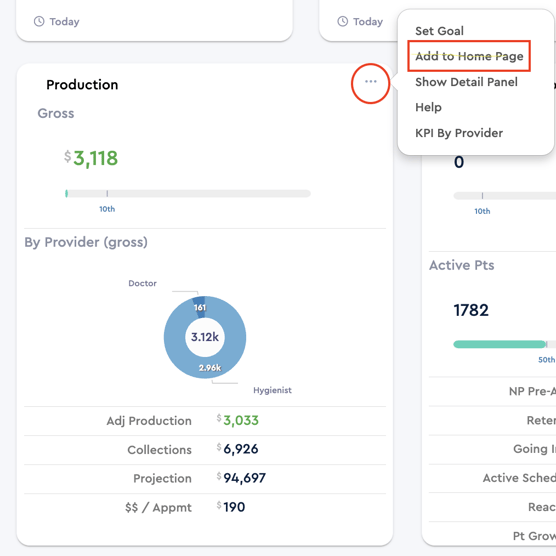
To start, select the three dots either on the panel's Title heading or the three dots next to the individual KPI and select "Add to Home Page."
Then, a settings window will open with options for the time period, display options, and provider choices.
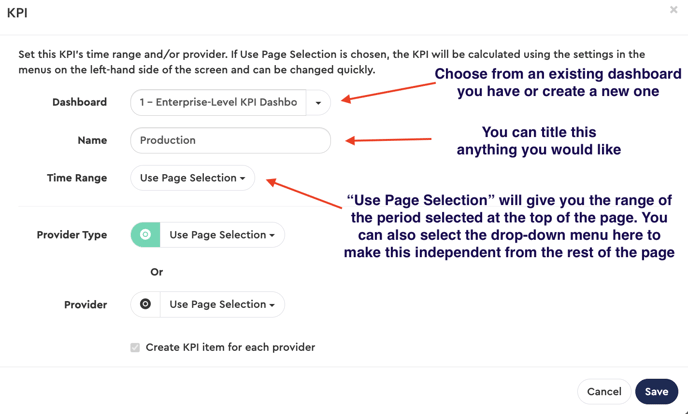
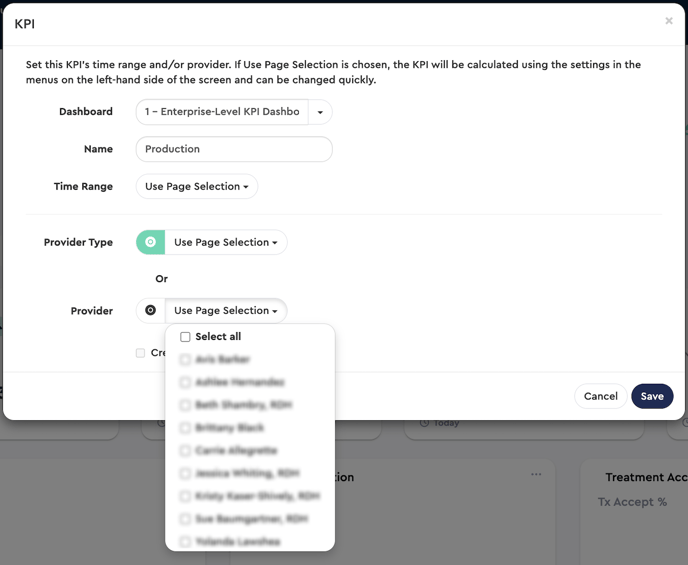
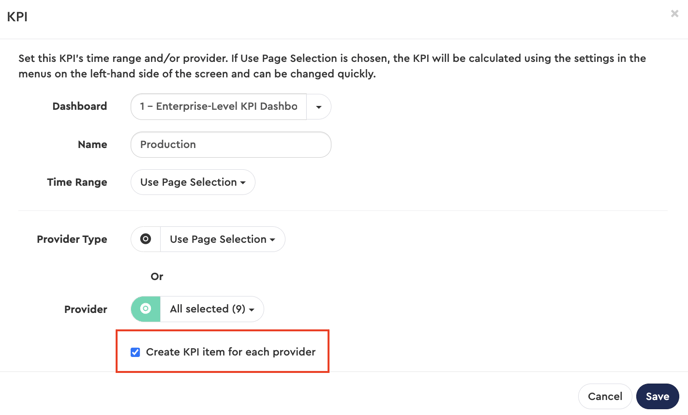
The default setting will be the total number for the office. Selecting the drop-down menu will enable you to utilize only certain providers. Choosing the "Select KPI item for each Provider" option will create a separate panel on the dashboard for each provider you selected.
After selecting "Save," the page will refresh, and the name of the new dashboard will be displayed above the Home dashboard on the upper left of the page.
Click here for further information on changing the layout and other options for this new page.